WooCommerce Store Structure Explained (Products, Pages, Checkout)
If you have just installed WooCommerce, your WordPress dashboard suddenly looks very different. New menu items appear. New pages are created automatically. You see things like Products, Shop, Cart, and Checkout — and it can feel overwhelming at first.
But here is the truth: WooCommerce store structure is actually very logical once you understand how everything connects.
After helping multiple clients set up and manage WooCommerce stores over 4 years of web development experience, I can tell you that most beginner mistakes come from not understanding how the core pages and product types work together — not from the technical side.
Think of your WooCommerce store like a physical retail shop:
- Products = Items on shelves
- Categories = Store sections (Men, Women, Electronics)
- Shop page = Main display area customers walk into
- Cart = Shopping basket customers carry around
- Checkout = Cash register at the exit
Once you understand this flow, everything becomes much easier to manage, optimise, and grow.
This guide explains every part of WooCommerce store structure in simple language — from products and pages to checkout flow and navigation setup.

Why Understanding Store Structure Matters
Most beginners focus on design first — colours, logos, fonts. But structure matters far more than design.
A well-structured WooCommerce store:
- Improves SEO — Google can crawl and understand your pages properly
- Makes navigation easy — customers find what they need without confusion
- Increases conversion rates — a logical flow guides customers toward purchase
- Reduces abandoned carts — fewer obstacles between browsing and buying
- Feels professional and trustworthy — which builds repeat customers
A messy structure confuses customers. Confused customers do not buy — they leave.
If you understand how products, pages, and checkout connect from the beginning, you will build your store the right way from day one instead of fixing problems later.
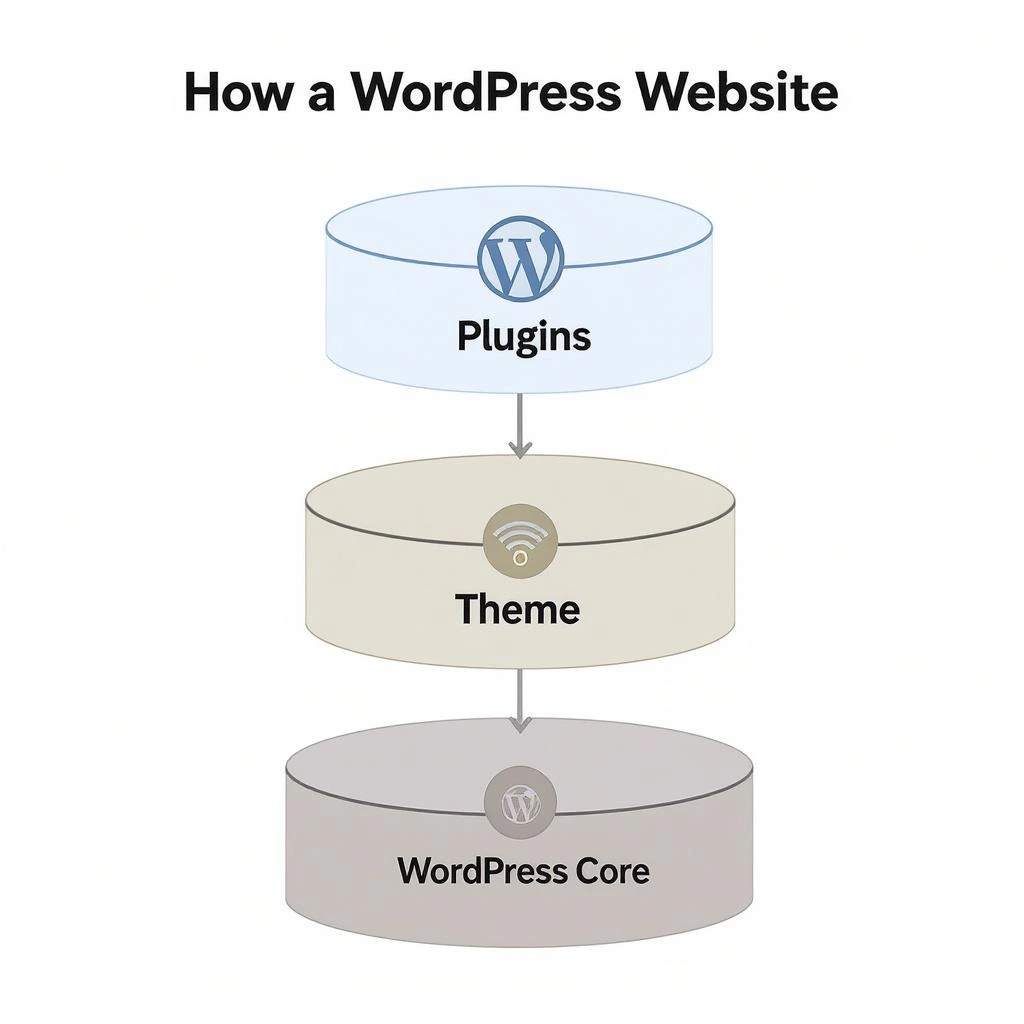
How WooCommerce Works with WordPress
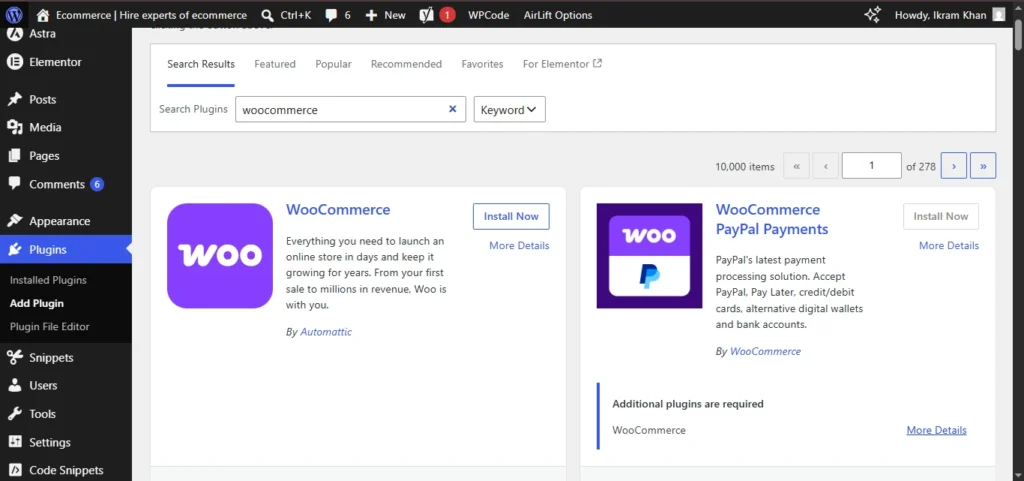
WooCommerce is a free plugin that adds complete eCommerce functionality to any WordPress website. It is the most widely used eCommerce solution in the world, powering over 28% of all online stores.
WordPress handles:
- Pages and blog posts
- Media (images, videos)
- Themes and design
- User accounts
WooCommerce adds on top of WordPress:
- Products and product management
- Orders and order history
- Payment gateways
- Shipping zones and rates
- Cart and checkout functionality
- Customer accounts
When you install and activate WooCommerce, it automatically creates four core pages:
- Shop — your main product listing page
- Cart — where customers review their selections
- Checkout — where purchases are completed
- My Account — where customers manage their orders
These pages are connected through dynamic functionality. You do not manually design how the cart works — WooCommerce handles all of that behind the scenes. WordPress controls layout and design. WooCommerce controls store logic and transactions.
The Complete WooCommerce Store Structure Overview
Here is how a well-structured WooCommerce store looks from homepage to order completion:
Homepage
  ↓
Shop Page (all products)
  ↓
Category Page (e.g. Clothing → T-Shirts)
  ↓
Individual Product Page
  ↓
Cart Page
  ↓
Checkout Page
  ↓
Order Confirmation / Thank You Page
  ↓
My Account (order history & tracking)
Every step in this flow needs to be clear, fast, and frictionless. Any confusion at any stage causes customers to abandon their purchase.
Core WooCommerce Pages Explained in Detail
1. The Shop Page

The Shop page is your main product archive — it is the page customers land on when they want to browse everything you sell.
What it does:
- Automatically displays all published products in a grid layout
- Updates dynamically as you add or remove products
- Allows customers to sort by price, popularity, newest, or rating
- Can be filtered by category, tag, or attribute
Important: You never manually add products to the Shop page. WooCommerce populates it automatically based on your published products. Your only job is to set up products correctly and the Shop page does the rest.
SEO tip: Optimise your Shop page title and meta description in your Yoast or RankMath plugin. This is one of the most visited pages on any WooCommerce store and deserves strong SEO attention.
2. Product Pages
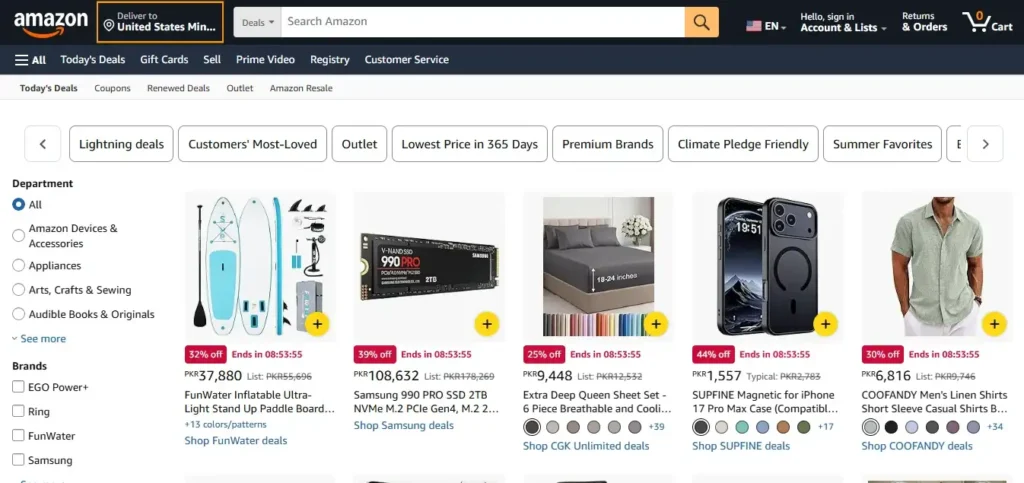
Each product you create gets its own individual page automatically. This is where customers make the decision to buy — so it is the most important page in your entire store.
A complete product page includes:
- Product title (clear and descriptive)
- High quality product images (multiple angles)
- Short description (appears next to the product image)
- Long description (appears in a tab below)
- Price (and sale price if applicable)
- Stock status (In Stock / Out of Stock)
- Product variations (size, colour, etc. for variable products)
- Add to Cart button
- Related products section at the bottom
Optional tabs:
- Description
- Additional Information (attributes)
- Reviews and star ratings
A product page that is clear, detailed, and visually appealing converts significantly better than a basic one. Never leave the description empty — Google also uses product descriptions to understand and rank your pages.
3. The Cart Page
The Cart page is a temporary holding area where customers review their selections before paying.
What customers can do on the Cart page:
- See all selected products with images and prices
- Adjust quantities or remove items
- Apply coupon codes
- See estimated shipping costs
- Click “Proceed to Checkout” to complete the purchase
Optimisation tips for better Cart conversions:
- Keep the Cart page clean and simple
- Show a clear subtotal and total
- Add trust badges (secure checkout, money-back guarantee)
- Display a “Continue Shopping” link so customers can easily add more items
- Show cross-sell products (complementary items) to increase average order value
4. The Checkout Page
The Checkout page is where money changes hands. It is the single most important page for your store’s revenue — and the most common place where sales are lost.
A standard WooCommerce checkout collects:
- Billing address (name, address, email, phone)
- Shipping address (if different from billing)
- Payment details (card, PayPal, bank transfer, etc.)
- Order notes (optional customer instructions)
- Order summary with total cost
Why checkout optimisation matters:
According to industry data, the average cart abandonment rate is around 70%. Most of those abandonments happen during checkout because it is too complicated, too slow, or does not offer the customer’s preferred payment method.
How to improve your checkout:
- Remove unnecessary fields — only ask for what you absolutely need
- Offer guest checkout — do not force account creation
- Show multiple payment options — PayPal, card, Buy Now Pay Later
- Display security badges and SSL indicators
- Show the total cost clearly before the final submit button — no surprise fees
5. The My Account Page
The My Account page is where registered customers manage their relationship with your store.
Customers can use it to:
- View and track all past orders
- Download digital products they have purchased
- Manage saved addresses for faster future checkout
- Update their account password and email
- View and download invoices
This page builds customer trust and encourages repeat purchases. A customer who can easily track their orders and manage their account is far more likely to return and buy again.
WooCommerce Product Types Explained
WooCommerce supports six product types. Understanding each one helps you set up your store correctly.
1. Simple Products
The most common product type. One product, one price, no variations.
Example: A printed book, a phone case, a coffee mug.
Use simple products when your item has no size, colour, or style options.
2. Variable Products
Products that come in different versions — each version can have its own price, SKU, stock level, and image.
Example: A T-shirt available in Small, Medium, Large, and in Red, Blue, or Black.
Variable products are set up using Attributes (e.g. Size, Colour) and Variations (each specific combination).
3. Grouped Products
A collection of related simple products displayed together on one page.
Example: A furniture set where customers can choose to add the table, chairs, or both individually.
4. External / Affiliate Products
Products that are displayed on your WooCommerce store but purchased on a different external website.
Example: An Amazon affiliate product where clicking “Buy” takes the customer to Amazon.
5. Virtual Products
Products that have no physical form and do not require shipping.
Example: A consulting call booking, a subscription service, an online course.
6. Downloadable Products
Digital files that customers receive after purchase.
Example: An ebook, a Photoshop template, stock photos, software.
Downloadable products are automatically delivered to customers via a download link after payment — no manual work needed from your side.
Product Categories, Tags, and Attributes
Organising your products correctly is essential for both user experience and SEO.
Categories
Categories are the main organisation system. They create a hierarchy that helps customers navigate your store.
Good category structure example:
- Clothing
- Men’s Clothing
- T-Shirts
- Jeans
- Women’s Clothing
- Dresses
- Tops
Rules for good categories:
- Keep category names short and descriptive
- Do not create too many categories — aim for 5–10 main categories maximum
- Every product must belong to at least one category
- Each category gets its own URL which Google can index
Tags
Tags are descriptive keywords that describe product features.
Example: A red summer dress might have tags like: summer, floral, casual, lightweight.
Tags help customers find products through search and improve internal discoverability. Do not overuse tags — only add tags that are genuinely descriptive.
Attributes
Attributes define the variable options of your products — size, colour, material, etc.
Global attributes (set up in the Products → Attributes menu) can be reused across multiple products. They are essential for creating variable products with different pricing per variation.
How WooCommerce URLs Are Structured
Clean URL structure is important for both SEO and usability.
Default WooCommerce URL patterns:
| Page Type | URL Structure |
|---|---|
| Product | yourstore.com/product/product-name |
| Category | yourstore.com/product-category/category-name |
| Shop | yourstore.com/shop |
| Cart | yourstore.com/cart |
| Checkout | yourstore.com/checkout |
Important: Go to WordPress → Settings → Permalinks and make sure you are using “Post name” permalink structure. This gives you clean URLs like /product/red-summer-dress/ instead of ugly URLs like /?p=123.
WooCommerce Navigation and Menu Structure
Your store’s navigation menu directly affects both user experience and SEO. A well-organised menu helps customers find products faster and helps Google understand your site structure.
Recommended header menu for WooCommerce:
- Home
- Shop
- [Your main categories] (2–3 key ones)
- About
- Contact
- Cart icon
Footer menu should include:
- Privacy Policy
- Terms and Conditions
- Refund Policy
- Shipping Information
- Contact
Important: Always link to your Privacy Policy, Terms, and Refund Policy in the footer. These pages are required for both customer trust and AdSense approval. Google’s reviewers check for these pages during the approval process.
How a Customer Moves Through Your WooCommerce Store
Understanding the customer journey helps you optimise each touchpoint.
Step 1 — Discovery
Customer arrives via Google search, social media, or direct link. They land on your Homepage or a specific product/category page.
Step 2 — Browsing
Customer navigates to the Shop page or a category. They browse products using filters and sorting options.
Step 3 — Product Review
Customer clicks a product to open the Product page. They read the description, view images, check the price, and read reviews.
Step 4 — Add to Cart
Customer clicks “Add to Cart.” The product is added to the Cart page. A notification confirms the action.
Step 5 — Cart Review
Customer visits the Cart page to review their selection, adjust quantities, or apply a coupon code.
Step 6 — Checkout
Customer clicks “Proceed to Checkout.” They fill in billing, shipping, and payment details.
Step 7 — Order Confirmation
After payment, the customer sees a Thank You page with their order number and summary. They also receive an automatic confirmation email.
Step 8 — My Account
Customer can log in to My Account at any time to track their order, request a return, or purchase again.
Every step in this journey must be smooth, fast, and trustworthy. Any friction at any step reduces your conversion rate.
Common WooCommerce Structure Mistakes to Avoid
1. Too many categories
Creating 30+ categories confuses customers and dilutes SEO. Keep it simple — start with 5–10 main categories.
2. Ignoring URL structure
Using the wrong permalink setting creates ugly URLs that hurt SEO. Always use Post Name permalinks.
3. Complicated checkout
Every extra field in checkout costs you conversions. Remove anything that is not absolutely necessary.
4. Cluttered navigation menu
Putting too many items in the header menu overwhelms customers. Limit to 5–7 main items.
5. Empty product descriptions
Many store owners only add a title and price. Without a proper description, Google cannot understand what the product is and will not rank your product pages.
6. No mobile optimisation
Over 60% of eCommerce browsing happens on mobile. Your WooCommerce store must look and function perfectly on all screen sizes.
7. Missing essential pages
Every WooCommerce store must have a Refund Policy, Privacy Policy, and Terms page. Without these, customers do not trust you and payment processors may reject your account.
Recommended WooCommerce Store Structure for Beginners
If you are starting from scratch, here is the optimal structure to set up:
Homepage:
- Hero section with clear value proposition
- Featured or bestselling products (6–8 products)
- Key product categories with images
- Trust indicators (secure payment, free returns, etc.)
Category pages:
- Clean product grid
- Filtering options by price and attributes
- Breadcrumb navigation
Product pages:
- Professional product images (minimum 3–4 per product)
- Detailed description (at least 150–200 words)
- Clear price and stock status
- Multiple Add to Cart buttons (top and bottom of page)
- Reviews section enabled
Cart page:
- Clean layout with product thumbnails
- Coupon field
- Clear proceed to checkout button
Checkout:
- Minimal fields
- Guest checkout enabled
- Multiple payment options
- Security badge visible
My Experience Using WooCommerce for Client Stores
After 4 years of building and managing WooCommerce stores for clients across different industries — from food businesses to clothing brands to digital product sellers — here is what I have learned that most beginner guides do not tell you.
WooCommerce is not plug-and-play for everyone. If you are comfortable with WordPress and willing to spend a few hours in the settings, it is the most powerful free eCommerce solution available. But if you want something you can set up in 30 minutes without touching any settings, Shopify may suit you better at the beginning.
The stores that perform best on WooCommerce share three things: fast hosting (this matters more than any plugin), a clean lightweight theme, and a disciplined approach to plugins — installing only what you genuinely need.
The stores that struggle on WooCommerce almost always have the same problems: cheap shared hosting causing slow speed, too many plugins conflicting with each other, and no regular maintenance or updates.
If you set up WooCommerce correctly from the beginning and maintain it consistently, it will serve your business reliably for years. That is the honest assessment from someone who has worked on 20+ WooCommerce stores.
WooCommerce vs Shopify vs Wix — Detailed Comparison
Choosing between WooCommerce, Shopify, and Wix is one of the most common questions beginners ask. Here is an honest, detailed comparison based on real usage:
| Feature | WooCommerce | Shopify | Wix |
|---|---|---|---|
| Monthly Cost | Free plugin (hosting ~$5–15/month) | $29–$299/month | $17–$159/month |
| Transaction Fees | None | 0.5%–2% (unless using Shopify Payments) | None |
| Ease of Setup | Moderate — requires WordPress knowledge | Very easy — beginner friendly | Easiest — drag and drop |
| Design Flexibility | Very high — full code access | High — within Shopify framework | Medium — limited customisation |
| SEO Control | Excellent — full control | Good — some limitations | Basic — limited control |
| Product Limit | Unlimited | Unlimited | Limited on lower plans |
| Payment Options | 100+ gateways available | Limited to Shopify-approved gateways | Limited gateway options |
| Ownership | You own everything | Shopify owns the platform | Wix owns the platform |
| Scalability | Extremely scalable | Very scalable | Limited for large stores |
| Best For | WordPress users, long-term growth | Beginners, fast launch | Very small stores, simple needs |
When to Choose WooCommerce
- You already use WordPress or are comfortable with it
- You want full ownership and control of your store
- You need advanced SEO capabilities
- You want to avoid monthly platform fees
- You plan to scale significantly over time
When to Choose Shopify
- You want the fastest possible setup with minimal technical knowledge
- You are willing to pay a monthly fee for simplicity
- You do not need deep customisation
- You want 24/7 dedicated eCommerce support
When to Choose Wix
- You are building a very small store with fewer than 20 products
- Your primary focus is a portfolio or service website with a small shop added
- You want a simple drag-and-drop experience with no technical setup
Bottom line: For serious online stores that plan to grow, WooCommerce gives you the most value in the long run. The learning curve is real but the freedom and cost savings are worth it.
How Much Does WooCommerce Cost? (Complete Breakdown)
One of the most misunderstood things about WooCommerce is pricing. WooCommerce itself is free — but running a store has real costs.
Essential Costs
| Cost Item | Price Range | Notes |
|---|---|---|
| WooCommerce Plugin | Free | Always free from WordPress.org |
| WordPress | Free | Always free |
| Web Hosting | $5–$30/month | Hostinger, SiteGround, Cloudways |
| Domain Name | $10–$15/year | From any domain registrar |
| SSL Certificate | Free–$10/year | Most hosts include free SSL |
| WooCommerce Theme | Free–$60 one-time | Many good free options available |
Minimum realistic cost to start: approximately $60–$100 for the first year
Optional Costs
| Cost Item | Price Range | Notes |
|---|---|---|
| Premium theme | $30–$60 one-time | Better design and support |
| SEO plugin (Yoast/RankMath) | Free–$99/year | Free versions sufficient for most |
| Backup plugin | Free–$80/year | UpdraftPlus free version works well |
| Security plugin | Free–$99/year | Wordfence free version is good |
| Payment gateway fees | 1.5%–3% per transaction | Charged by payment processor, not WooCommerce |
The total cost of WooCommerce is significantly lower than Shopify for most stores — especially as you scale. A store doing $10,000/month on Shopify might pay $299/month platform fee plus 0.5% transaction fees. The same store on WooCommerce pays only hosting costs.
WooCommerce Payment Gateways — Complete Guide
WooCommerce supports over 100 payment gateways making it one of the most flexible eCommerce platforms for accepting payments worldwide.
Built-in Payment Options (Free)
- PayPal Standard — included by default, works in most countries
- Bank Transfer (BACS) — customers transfer money directly to your bank
- Cash on Delivery — for local businesses and pickup orders
- Cheque Payments — for offline payment workflows
Most Popular Payment Gateway Extensions
- Stripe — accepts all major credit and debit cards, very easy setup
- PayPal Commerce Platform — advanced PayPal integration with card processing
- Square — ideal for businesses with both online and physical stores
- Authorize.net — popular with US-based businesses
- Razorpay — widely used across South Asia
How Payments Work in WooCommerce
When a customer completes checkout, WooCommerce sends the payment details securely to your chosen payment gateway. The gateway processes the transaction and sends back a confirmation. WooCommerce then automatically creates the order, updates inventory, and sends confirmation emails to both you and the customer.
Important: WooCommerce itself never holds your money. All funds go directly from the customer to your payment processor and then to your bank account. WooCommerce charges zero transaction fees — only your payment gateway charges a processing fee (typically 1.5%–3% per transaction).
Is WooCommerce Good for SEO?
Yes — WooCommerce is one of the best eCommerce platforms for SEO and this is one of its most significant advantages over hosted platforms like Shopify and Wix.
Why WooCommerce is SEO-Friendly
Full URL control — you can set any URL structure you want for products, categories, and pages. Unlike Shopify which forces /products/ in every product URL, WooCommerce lets you choose your own structure.
Works with the best SEO plugins — Yoast SEO and RankMath integrate directly with WooCommerce product pages, giving you full control over meta titles, descriptions, schema markup, and canonical tags for every product.
Clean HTML structure — WooCommerce generates clean, semantic HTML that search engines can crawl and understand efficiently.
Product schema markup — WooCommerce automatically generates product schema (price, availability, star ratings) making your products eligible for rich results in Google Search — these significantly increase click-through rates.
Page speed control — unlike hosted platforms where you have limited control over server performance, WooCommerce lets you choose your hosting, implement caching, use a CDN, and fully optimise for speed.
Blog integration — WooCommerce runs alongside your WordPress blog, allowing you to create SEO-driven content that attracts organic traffic and funnels visitors toward your products.
Internal linking flexibility — you can link freely between blog posts and product pages, building a strong internal link structure that distributes authority throughout your store.
The SEO advantage of WooCommerce over Shopify becomes especially clear at scale. Large WooCommerce stores with thousands of products and a strong content strategy consistently outrank Shopify stores in organic search because of this flexibility.
Common WooCommerce Mistakes Beginners Make
After managing dozens of WooCommerce stores, these are the mistakes I see most often:
1. Choosing cheap hosting WooCommerce is a database-driven application. Cheap $1/month hosting cannot handle it properly. Always use at least a mid-tier shared hosting plan or a managed WordPress host for stores with more than 50 products.
2. Installing too many plugins Every plugin adds load time and potential conflicts. A common beginner mistake is installing 20–30 plugins thinking more features means a better store. Keep it under 15 essential plugins maximum.
3. Not setting up backups from day one WooCommerce stores contain customer data, order history, and product information. Without regular backups, a single server issue can lose everything. Install UpdraftPlus and set daily automated backups before you launch.
4. Ignoring mobile optimisation Over 60% of online shopping happens on mobile devices. Always test your store on a real phone before launching — not just in the browser’s mobile view.
5. Skipping the test order Before going live, always place a real test order using a real payment method and then refund it. This confirms the entire checkout flow works correctly from the customer’s perspective.
6. Not configuring taxes correctly Tax settings in WooCommerce can be complex depending on your country and where your customers are located. Research your tax obligations before launching and configure WooCommerce tax settings accordingly.
7. Leaving WordPress and plugins unupdated WooCommerce releases regular updates that include security patches, bug fixes, and new features. Running outdated versions is the most common cause of security vulnerabilities and compatibility issues on WooCommerce stores.
Final Thoughts
WooCommerce store structure is the foundation of a successful online store. Get it right from the beginning and everything else — SEO, conversions, customer experience — becomes much easier to manage and improve.
The key points to remember:
- Your store has five core pages — Shop, Product, Cart, Checkout, My Account
- Products come in six types — choose the right one for each item you sell
- Categories, tags, and attributes organise your products for customers and Google
- Clean URLs, logical navigation, and mobile optimisation are non-negotiable
- Every step of the customer journey must be smooth and frictionless
A well-structured WooCommerce store does not just look good — it sells consistently, ranks in Google, and builds the kind of customer trust that creates repeat buyers.
Frequently Asked Questions
1. How is WooCommerce different from WordPress?
WordPress is a content management system used to build websites, blogs, and pages. WooCommerce is a free plugin that installs on top of WordPress and adds complete eCommerce functionality. WordPress handles your content and design while WooCommerce handles products, orders, payments, and shipping. You cannot use WooCommerce without WordPress — they work together as one system.
Is WooCommerce really free?
WooCommerce itself is completely free to download and use from WordPress.org. You will need to pay for web hosting (approximately $5–$15 per month) and a domain name ($10–$15 per year). Many premium extensions and themes cost extra, but you can run a fully functional online store using only free tools. The minimum realistic cost to start is around $60–$100 for the first year.
Do I need coding knowledge to use WooCommerce?
No coding knowledge is required for basic store setup. You can install WooCommerce, add products, configure payments and shipping, and launch your store entirely through the WordPress dashboard without writing a single line of code. Coding knowledge only becomes useful when you need advanced customisations beyond what plugins and themes offer.
How many products can I sell on WooCommerce?
There is no product limit in WooCommerce. It can handle stores with just a few products all the way up to tens of thousands of products. Performance at large scale depends primarily on your hosting quality and server resources — not on WooCommerce itself. Choose a reliable hosting plan as your store grows.
Is WooCommerce better than Shopify?
It depends on your specific situation and priorities. WooCommerce is better for long-term cost savings, full SEO control, and customisation flexibility since you own everything. Shopify is better for quick setup and ease of use for complete beginners who want everything managed for them. For most serious stores planning long-term growth, WooCommerce offers significantly more value and freedom.
Can I use WooCommerce without WordPress?
No. WooCommerce is a WordPress plugin and requires WordPress to function. It cannot be installed on any other platform or used as a standalone application. If you want a hosted eCommerce solution that does not require WordPress, Shopify or BigCommerce are the most popular alternatives.
Is WooCommerce secure?
Yes, when properly maintained WooCommerce is very secure. Security depends on keeping WordPress, WooCommerce, and all installed plugins updated regularly, using a reputable hosting provider that includes SSL, and installing a security plugin like Wordfence. The most common causes of WooCommerce security issues are outdated plugins and cheap hosting — not WooCommerce itself.
How long does it take to set up a WooCommerce store?
A basic WooCommerce store with a few products, a payment gateway, and shipping configuration can be set up in 4–8 hours for someone comfortable with WordPress. A fully customised professional store with custom design, advanced features, and full SEO setup typically takes 2–5 days depending on the complexity of the project.
Does WooCommerce work with PayPal?
Yes. WooCommerce includes built-in PayPal Standard integration by default — no extra plugin needed for basic PayPal payments. PayPal also offers a dedicated WooCommerce extension for more advanced features including PayPal credit and pay later options. Stripe is equally popular and also works seamlessly with WooCommerce for card payments.
What hosting is best for WooCommerce?
For beginners, Hostinger Business plan or SiteGround GrowBig are both reliable and affordable starting points. For growing stores with higher traffic, Cloudways or WP Engine offer significantly better performance and dedicated WordPress optimisation. Always avoid the cheapest shared hosting plans as they are too slow and resource-limited for WooCommerce stores receiving regular traffic.
Can I migrate from Shopify to WooCommerce?
Yes. Several dedicated tools and plugins make it possible to migrate products, customers, and order history from Shopify to WooCommerce. The migration process requires some technical knowledge but can also be handled by a WooCommerce developer. Many growing businesses make this switch specifically to reduce monthly platform fees and gain more control over their store as they scale.

Founder of HireEcomExperts.com — a platform helping online entrepreneurs find trusted Fiverr freelancers for Shopify, dropshipping, Amazon FBA, and digital marketing. Website Developer and SEO specialist with hands-on experience in ecommerce growth strategies.